
Download gTalk Sidebar – Firefox IM extension for seamless Google chat
Overview
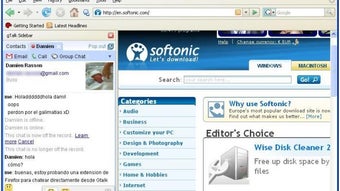
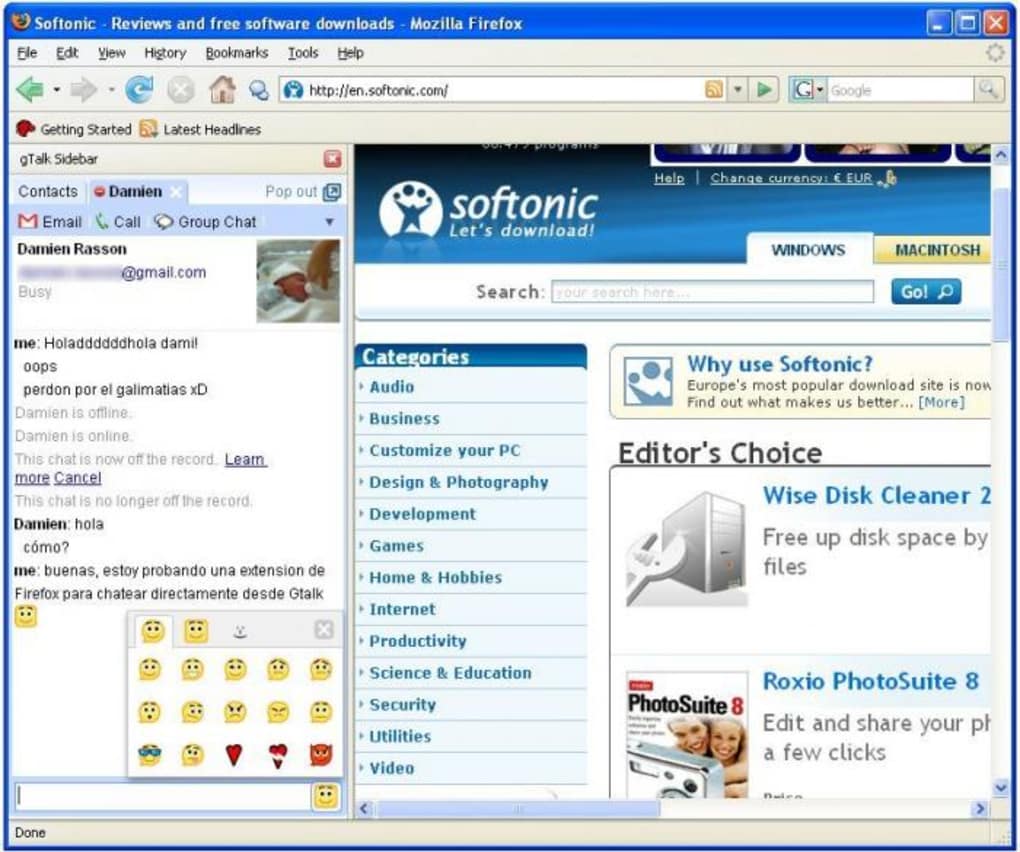
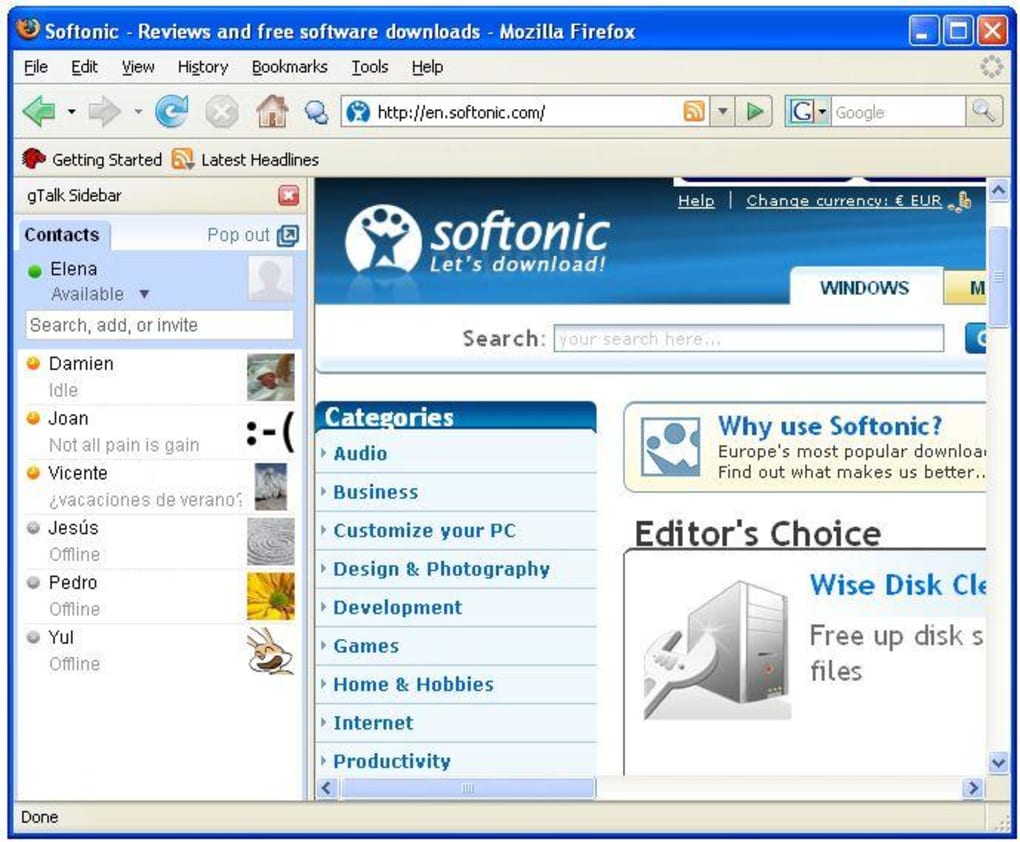
gTalk Sidebar is a lightweight Firefox extension that brings Google’s classic instant‑messaging service (Gtalk) directly into the browser’s sidebar. While Gmail once embedded Gtalk for convenient chatting while checking email, the original integration required you to keep the Gmail tab open. gTalk Sidebar eliminates that limitation by giving you a persistent chat pane that lives alongside your browsing session. Once installed, the sidebar displays your full contact list, shows online status in real‑time, and lets you start conversations with a single click.
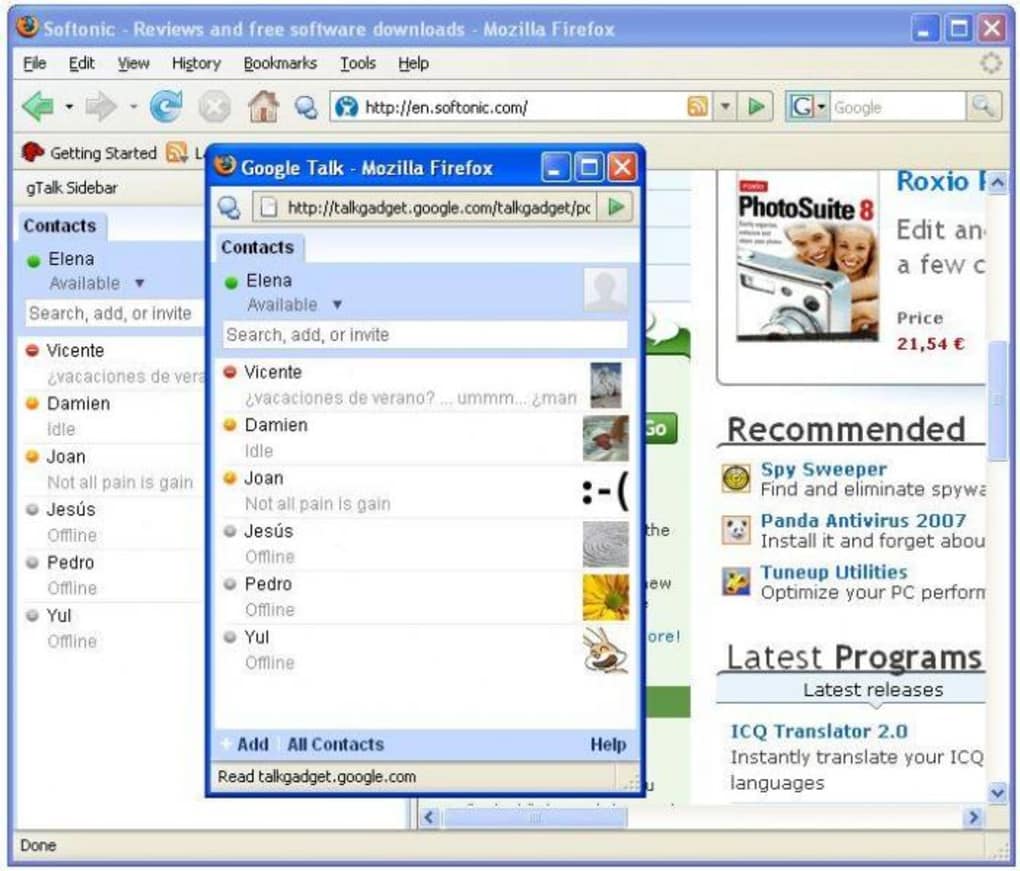
The extension also supports tabbed chat windows, a built‑in emoticon library, and a “Pop out” feature that moves an active conversation to a separate window for focused discussion. Although the login flow opens a new browser window for Google authentication, the overall experience feels secure, fast, and highly integrated. This tool is especially valuable for power users who spend most of their day in Firefox and need an always‑available chat channel without the distraction of a full Gmail page.
Whether you’re a remote worker juggling multiple projects, a student coordinating group study sessions, or a casual user staying in touch with friends, gTalk Sidebar provides a free, secure, and continuously updated way to keep the conversation flowing.
Key Features and Functionalities
- Sidebar Integration: Embeds Gtalk directly into Firefox’s left or right sidebar, keeping chats visible while you browse other sites.
- Real‑time Contact List: Shows online/offline status, custom nicknames, and group organization for quick access.
- Tabbed Chat Windows: Open multiple conversations in separate tabs within the sidebar, allowing you to switch between chats without losing context.
- Pop‑out Conversation: Click “Pop out” to move any active chat into a dedicated window, perfect for lengthy discussions or screen sharing.
- Emoticon Library: Includes a rich set of Google‑compatible emoticons, making chats expressive and fun.
- Secure Login Flow: Authentication occurs in a separate, Google‑hosted window, ensuring your credentials never touch the extension’s code.
- Automatic Updates: The extension checks for updates via Mozilla’s Add‑on repository, delivering bug fixes and feature enhancements without manual effort.
- Lightweight Design: Uses minimal system resources, so your browser stays fast even with multiple chat tabs open.
- Free and Open Source: No hidden fees or subscription—gTalk Sidebar is completely free to download and use.
The combination of these features creates a seamless chat experience that feels native to Firefox. By keeping the chat interface out of the main content area, gTalk Sidebar reduces visual clutter while still providing instant access to your Google contacts. The tabbed interface mirrors modern messaging apps, letting you organize conversations by project, topic, or friend group.
Moreover, the pop‑out option is a thoughtful addition for users who need a larger view for code snippets, URLs, or multimedia sharing. The emoticon library, though simple, adds personality and aligns with Google’s original Gtalk branding, preserving a nostalgic feel for long‑time users. Security‑focused developers will appreciate the separate login window, which follows OAuth best practices and avoids storing credentials locally.
Overall, the feature set is well‑balanced for both casual chatting and professional collaboration, making gTalk Sidebar a versatile tool for any Firefox user.
Installation, Setup, and Compatibility
Step‑by‑Step Installation Guide
- Open Firefox and navigate to the gTalk Sidebar add‑on page on Mozilla’s official repository.
- Click the “Add to Firefox” button. A permission dialog will appear; review the requested access (read your browsing data to display the sidebar) and confirm by clicking “Add”.
- Firefox will download and install the extension automatically. Once completed, you’ll see a small “gTalk” icon appear in the toolbar.
- Click the icon, then select “Show Sidebar”. The sidebar will slide in from the left (or right, based on your preference) and display a login prompt.
- A new browser window will open, directing you to Google’s authentication page. Enter your Google credentials and complete any two‑factor verification if enabled.
- After successful login, the sidebar will refresh, showing your contact list and ready for chat.
Configuration Tips
Once installed, you can customize the sidebar’s appearance via the extension’s options panel. Adjust the width, choose whether the sidebar opens on the left or right side of the screen, and enable or disable the emoticon toolbar. If you prefer the pop‑out view as your default, toggle the “Open chats in pop‑out window” setting. For power users, there’s an experimental feature that syncs the sidebar’s state across multiple Firefox profiles using Firefox Sync, ensuring you always pick up where you left off.
Operating System Compatibility
gTalk Sidebar is built for the Firefox browser, which runs on Windows, macOS, Linux, and even Android (via Firefox for Android’s limited sidebar support). The extension itself does not depend on the underlying OS beyond the requirements of Firefox 78+ and an active internet connection. As a result, you can download and use gTalk Sidebar on:
- Windows 10, 11, and later versions.
- macOS Catalina (10.15) and newer.
- Popular Linux distributions such as Ubuntu, Fedora, and Debian.
- Firefox for Android (limited sidebar functionality, but pop‑out works).
Because the extension relies on Google’s web‑based authentication, it inherits Google’s robust security standards, making the overall solution secure across all platforms. Regular updates from Mozilla ensure compatibility with the latest Firefox releases, and the developer has pledged to keep the extension functional even as Google transitions away from the legacy Gtalk service toward Hangouts or Chat.
Pros, Cons, and Frequently Asked Questions
Pros
- Free and open‑source – no hidden costs.
- Persistent chat without needing Gmail open.
- Tabbed interface for multi‑conversation management.
- Lightweight, low CPU and memory usage.
- Secure OAuth login flow.
- Automatic updates via Mozilla Add‑ons.
Cons
- Login opens a separate window, which can feel disruptive.
- Pop‑out does not retain ongoing conversation if opened mid‑chat.
- Only works with Firefox; no Chrome or Edge version.
- Legacy Gtalk service may be phased out by Google, affecting long‑term viability.
FAQ – Frequently Asked Questions
Is gTalk Sidebar still compatible with Google Chat after the Gtalk shutdown?
As of the latest update, gTalk Sidebar still connects to Google’s legacy chat endpoint. If Google fully deprecates the service, the extension will need a backend update to support Google Chat (Hangouts Chat). The developer has indicated plans to adapt, but users should monitor the add‑on page for announcements.
Can I use gTalk Sidebar on a Mac with Safari?
No. gTalk Sidebar is built exclusively for the Firefox browser. Safari does not support Firefox extensions, so you would need to use Firefox on macOS to run the sidebar.
Does the extension store my Google password?
No. Authentication is handled by Google in a separate window using OAuth. The extension never sees or stores your password, which aligns with best security practices.
How do I disable the sidebar if I no longer need it?
Open the Firefox Add‑ons Manager (about:addons), locate gTalk Sidebar, and click “Disable”. You can also remove it completely by selecting “Remove”. The sidebar will disappear from the UI immediately.
Is there a way to sync my chat history across multiple devices?
Chat history is stored on Google’s servers, so you can access past messages from any device that logs into your Google account via the sidebar or Gmail. However, the sidebar itself does not maintain a local history cache.
Conclusion – Should You Download gTalk Sidebar?
If you spend the majority of your online time in Firefox and need a quick, reliable way to stay connected with Google’s chat service, gTalk Sidebar offers a compelling, free solution. Its sidebar design keeps conversations visible without hogging screen real estate, and the tabbed chat system mirrors modern messaging apps, delivering a familiar experience. While the separate login window and the potential future deprecation of Gtalk are valid concerns, the extension’s lightweight footprint, secure OAuth flow, and automatic update mechanism make it a safe and convenient tool for today’s multitasking professional.
For users on Windows, macOS, or Linux who value an always‑on chat pane, the benefits outweigh the minor inconveniences. The extension’s open‑source nature also means you can trust the codebase, and the community can contribute fixes if Google’s APIs change. In short, download gTalk Sidebar now, enjoy seamless chatting, and keep your productivity high without the distraction of a full Gmail tab.
$0 – Click here to download gTalk Sidebar for free and start chatting instantly.







